How to Stop Inappropriate Videos From Appearing on YouTube
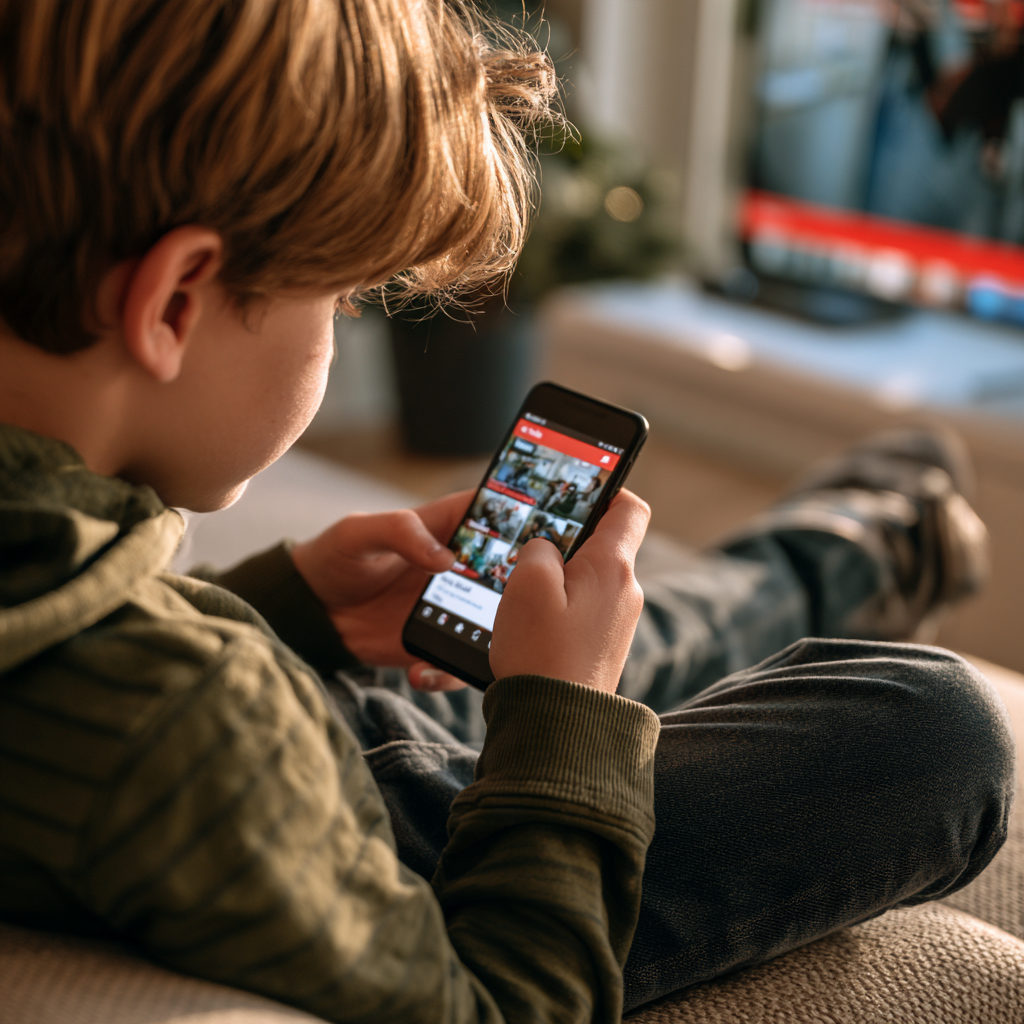
The fastest way to stop inappropriate videos
The fastest way to stop inappropriate videos on YouTube is to put your child on an age-appropriate account and then shape the recommendation feed. For under-13s that means the YouTube Kids app or a supervised account; for teens it means turning on Restricted Mode, turning off autoplay, and using "Don't recommend channel" on anything you don't want repeated. Because YouTube says "no filter is 100% accurate," the reliable finishing step is reviewing what's actually being watched and steering the feed away from bad channels.
Here is the full step-by-step, from the biggest levers to the fine-tuning.
Step 1: Match the account to your child's age
Most inappropriate content reaches kids because they're on a standard adult account that serves the full, unfiltered feed. Fix the account first:
- Under about 9: use the YouTube Kids app, ideally in Approved content only mode, where your child can watch just the channels and videos you've hand-picked and can't search.
- Roughly 9–12: set up a supervised account via Family Link and choose a content setting — Explore, Explore More, or Most of YouTube — that fits your child.
- Teens 13+: use Restricted Mode and the feedback tools below on their standard account.
For the full walkthrough, see our guide on making YouTube safer for kids.
Step 2: Turn on Restricted Mode
Restricted Mode is a free filter that hides videos YouTube flags as mature and disables comments. Turn it on by tapping your profile picture → Settings → Restricted Mode (on desktop it's at the bottom of the profile menu). It's a solid layer, but it only applies on the device or browser where it's enabled, and a signed-in child can often switch it off. To understand its limits, read what Restricted Mode actually blocks.
Step 3: Turn off autoplay
Autoplay is how a fine video rolls into a questionable one without anyone choosing it. Switch off the Autoplay toggle at the top of the player so each video is a deliberate choice. On supervised and Kids accounts you can disable autoplay in settings so it stays off.
Autoplay is easy to underestimate. A child who sits down to watch one approved video can, with autoplay on, be four or five auto-selected videos deep within minutes — and each hop hands more control to the algorithm. Turning it off is one of the highest-impact changes you can make in under a minute.
Step 4: Use "Don't recommend channel" and "Not interested"
These feedback tools tell YouTube to stop surfacing content you don't want. To use them, tap the three-dot menu on a video (or long-press a Short) and choose:
- Don't recommend channel — the most effective option; research suggests it cuts unwanted recommendations far more than "Not interested" or "dislike."
- Not interested — a lighter signal for one-off videos.
To fully block a specific channel rather than just downrank it, see how to block a YouTube channel from your child. For broader feed shaping, read how to change what YouTube recommends to your child.
Step 5: Reset a feed that's already gone bad
If the recommendations are already full of junk, retrain them from scratch. Pause or clear watch history and search history in your child's YouTube settings, then let the feed rebuild from good viewing. Watch history is the strongest driver of recommendations, so clearing it has an outsized effect. Our guide on resetting your child's YouTube recommendations covers this in detail.
One reset usually isn't enough on its own. The feed rebuilds around new viewing, so if the same borderline videos go back in, the same recommendations come back out. Think of it as a fresh start that you then protect with the account settings and feedback tools above.
Step 6: See what's actually being watched, and steer it
Every step above reduces the odds, but none guarantees your child never sees something bad — filters miss things and kids find workarounds. The only way to know what's really getting through is to look at the watch history. You can open History in your child's account and scroll, but it's easy to miss patterns in a long list.
This is where KidWatch is genuinely useful. It analyzes your child's real YouTube watch history and produces a report listing every channel and video they've watched, each with a kid-safety grade, so a questionable channel that keeps slipping through stands out immediately. For a channel you don't approve of, KidWatch's "steer away" feature unsubscribes your child and does its best to push YouTube's recommendations away from it over time — a best-effort nudge rather than a hard block, but one that attacks the root cause of a feed serving bad videos. You can also vet a channel in advance using KidWatch's rated channel catalog.
What no setting can fully do
There is no single switch that blocks all inappropriate content on YouTube. Filters are imperfect, kids share devices and log out, and the algorithm is always adjusting. That's why stopping bad videos is a layered routine: right account for the age, Restricted Mode on, autoplay off, active feedback, periodic history resets, and a regular review of what's actually being watched. Combine the tools with ongoing conversations, and you'll cut inappropriate videos down dramatically.
A useful way to think about it: settings reduce how often bad videos appear, and reviewing the watch history catches the ones that still get through. You need both. Set aside a few minutes each week to glance at what your child has watched, and act on anything that looks off with a "Don't recommend channel" tap or a steer-away. That small routine is what turns a one-time setup into lasting protection, and it also gives you natural openings to talk with your child about what they're seeing rather than policing it silently.
Frequently asked questions
Can I completely block all inappropriate videos on YouTube?
What's the most effective way to stop bad recommendations?
How do I reset YouTube recommendations for my child?
Does turning off autoplay really help?
Will Restricted Mode stop inappropriate videos?
How can I check whether inappropriate videos are still getting through?
See what YouTube is really teaching your kids
KidWatch turns your child's watch history into a plain-English safety report.
Get started